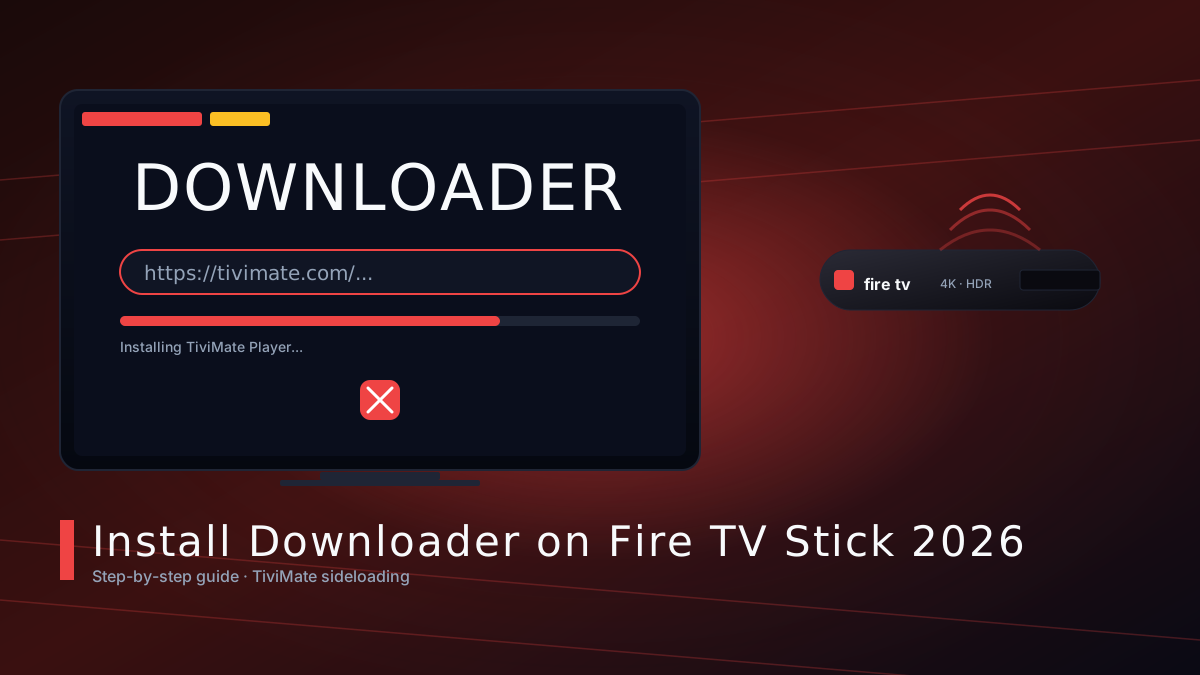
The Downloader app is the easiest way to sideload IPTV players on your Fire TV Stick. This 2026 guide walks through every step — from enabling Developer Options to installing TiviMate.
Amazon's Fire TV Stick is one of the most popular streaming devices in Canada, and the Downloader app is the unofficial gateway to sideloading powerful IPTV players like TiviMate, IPTV Smarters and OTT Navigator. This 2026 walkthrough covers every step — even if you've never touched Developer Options before.
Why Downloader is still the #1 sideloading tool in 2026
Downloader (by AFTVnews) has been the de-facto tool for installing third-party APKs on Fire TV since the early days. It's free, lightweight, ships with a built-in browser and a one-tap URL shortener, and it works on every Fire TV Stick, Fire TV Cube and Fire TV Smart TV sold since 2018.
Step 1 — Enable Developer Options on your Fire TV Stick
From the Fire TV home screen, go to Settings → My Fire TV → Developer Options. Turn both ADB Debugging and Apps from Unknown Sources to ON. Confirm the warning prompt — this is what unlocks sideloading.
Step 2 — Install Downloader from the Amazon Appstore
Press the Alexa voice button on your remote and say “Downloader”, or search manually in the Appstore. The official listing is published by AFTVnews. Install it like any other app.
Step 3 — Type or speak the TiviMate APK URL
Open Downloader. The Home tab shows a URL bar. Either speak the URL into your remote or type it with the on-screen keyboard. The classic URL is published on the TiviMate official site.
Step 4 — Install the IPTV player APK
After the file finishes downloading, Downloader will auto-prompt to install. Click Install, then Open to launch the player. From here, add your M3U playlist or Xtream Codes credentials.
Useful external resources
We've vetted the following official sources — each opens in a new tab:
- TiviMate official site (latest APK + changelog)
- AFTVnews — Downloader app home page
- Amazon Fire TV device support
Troubleshooting
If the APK fails to install, clear Downloader's cache (Settings → Applications → Manage Installed Applications → Downloader → Clear Cache) and retry. If you see 'Unknown Sources disabled', revisit Developer Options and re-enable it. For persistent issues, see our related guide on fixing IPTV box disconnects.